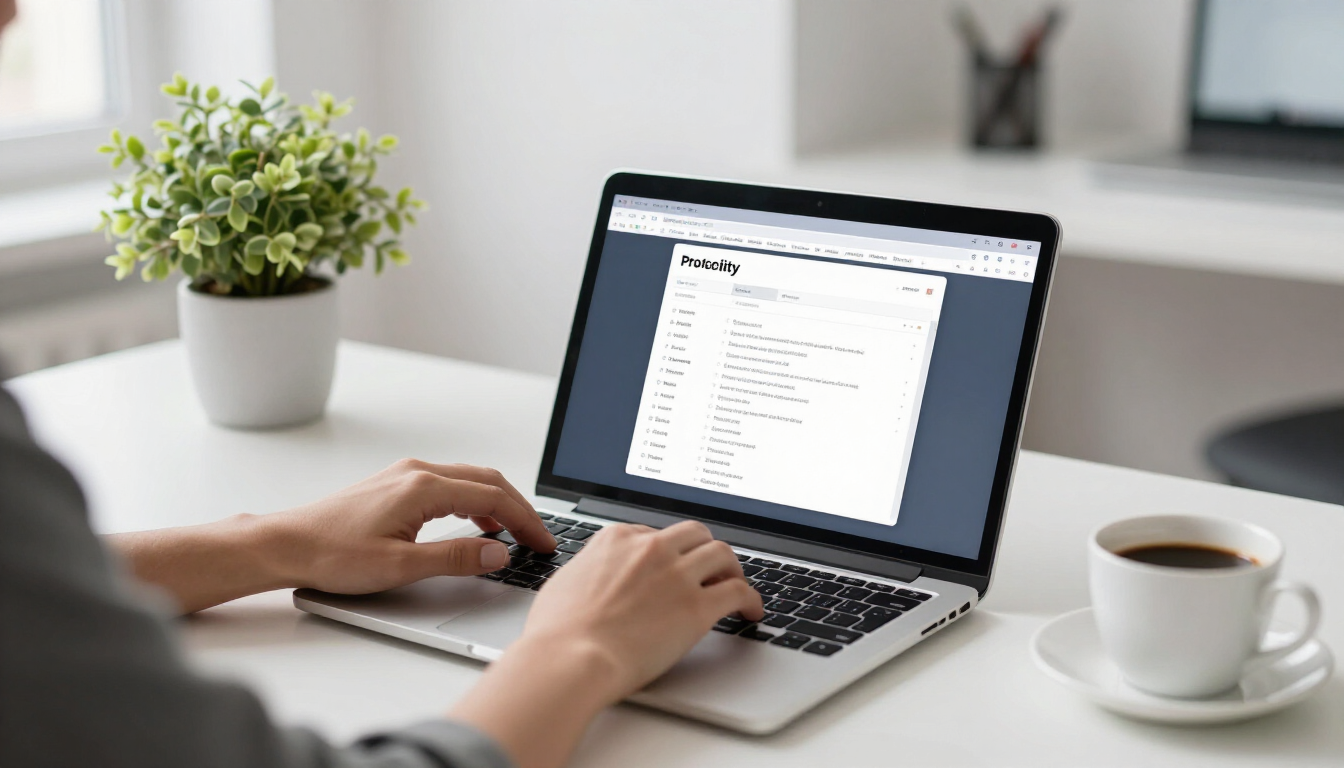
How to Use Notion Templates to Supercharge Your Productivity
Notion templates give you a professionally designed system in seconds. Here is how to install, customize and actually stick with them.
Why templates beat building from scratch
Notion is powerful precisely because it is a blank canvas — but that blank canvas is also its biggest trap. New users spend hours designing databases and dashboards instead of doing actual work. A well-built template hands you a proven structure so you can skip the setup and start being productive on day one.
Step 1: Duplicate the template
Every Notion template comes as a shareable page. When you open the link, click the Duplicate button in the top-right corner and it copies straight into your own workspace. That copy is fully yours to edit — nothing you change affects the original.
Step 2: Explore before you customize
Resist the urge to immediately rearrange everything. Spend ten minutes clicking through the pages, databases and views. Understanding how the creator intended the system to flow will help you customize it thoughtfully rather than breaking connections between linked databases.
Step 3: Make it yours
Now personalize. Rename sections to match your language, adjust database properties, change the cover image and icons, and delete pages you will not use. The goal is a workspace that feels natural, not one that fights your habits.
Turn these tips into action
Skip the setup and start today with our beautifully designed templates, planners and guides — instant downloads, delivered the moment you check out.
Step 4: Connect it to your daily routine
A template only works if you open it. Add it to your Notion favorites, bookmark it, or set it as your browser homepage. Pair it with a daily review habit — five minutes each morning to check your dashboard sets the tone for a focused day.
Step 5: Resist over-customizing
The most common reason people abandon Notion is endless tinkering. Give a template two full weeks of real use before making major changes. Most friction resolves itself once the system becomes familiar.
Best types of Notion templates to start with
If you are new, begin with a simple task manager or a life-organization dashboard rather than an all-in-one mega system. Once one template becomes second nature, layer in others — a content calendar, a habit tracker, a client CRM. Building your workspace one proven block at a time keeps it sustainable.
People Also Ask
Are Notion templates free to use?
Notion itself has a generous free plan, and templates work on it. Some templates are free while premium templates — with more advanced automations and polished design — are paid. Either way, you duplicate the template into your own workspace and it is yours to keep.
Can I edit a Notion template after duplicating it?
Absolutely. Once duplicated, the template is a normal Notion page you fully own. Rename anything, add or remove properties, change layouts and delete pages freely without affecting the original template.
Do I need to know Notion to use a template?
No. A good template is designed to work out of the box. Basic familiarity helps, but you can start using most templates by simply filling in your own information and following the built-in instructions.
Turn these tips into action
Skip the setup and start today with our beautifully designed templates, planners and guides — instant downloads, delivered the moment you check out.